MENUMENUCLOSECLOSE


Three.js • WebGL & Graphics Programming • WebGPU
12 Oct 2026
5 MIN READ 




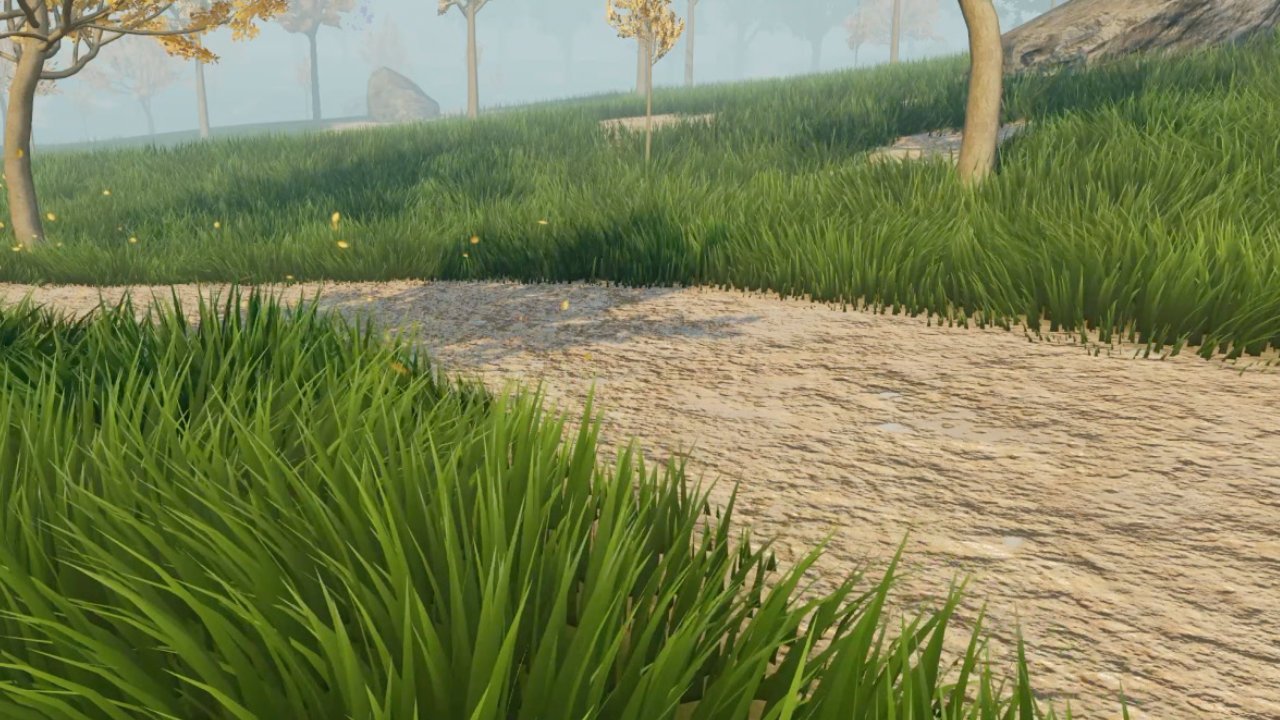
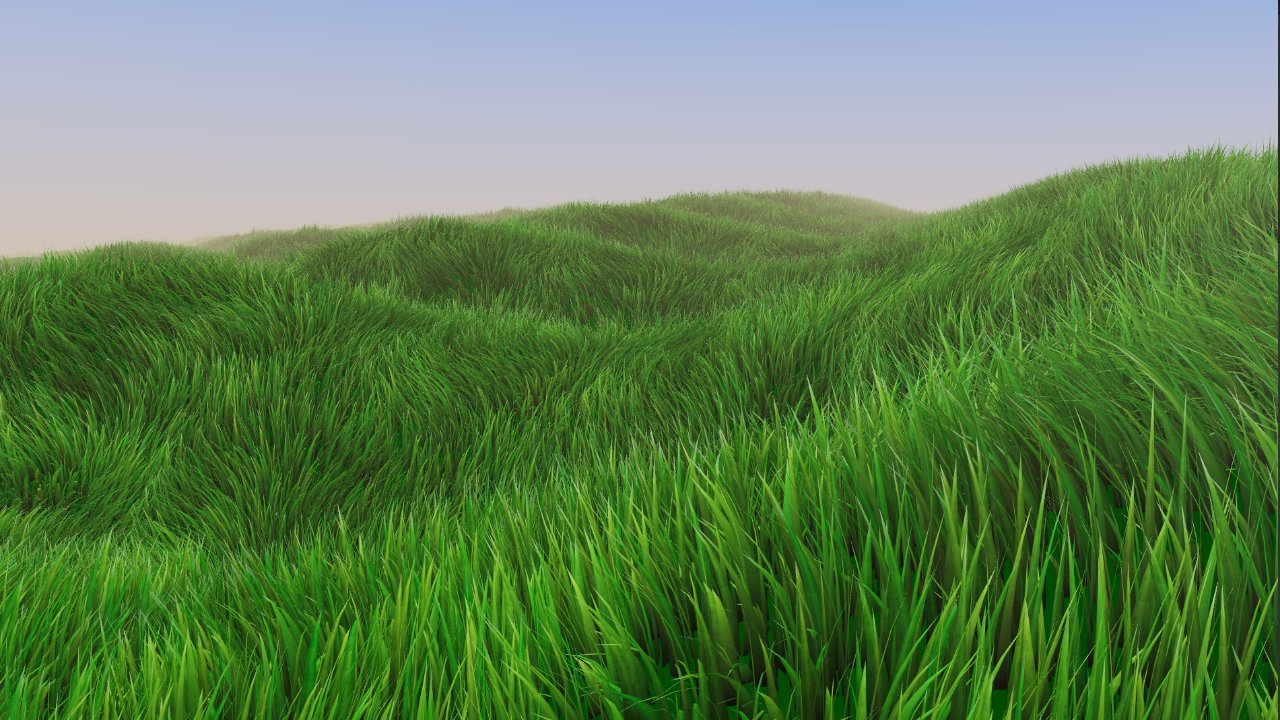
Billboard grass in Three.js uses textured rectangles to represent vegetation instead of relying entirely on detailed geometry for individual blades. I added it to Three.js Grassworks as a second rendering option, but swapping blades for rectangles was only the beginning. I also had to adapt the grass shader, solve a density problem that changed with the viewing angle, and find a transparency method that delivered the performance I wanted.
In Part 5, I explained how I made grass follow terrain using a height-map pipeline. Before that, Part 3 covered the tiled renderer, and Part 4 covered the LOD system. This part is about adding a different way to represent the grass itself.
Blade and Billboard Grass types
Blade-based grass has a particular look that I wanted to preserve. Each blade has its own geometry, can move independently, and gives me control over the detail and movement of the field. That approach was already working well in Grassworks, and I had no intention of replacing it.
The trade-off is that detailed blade geometry is not always what a scene needs. When the goal is to cover a very large area with dense vegetation, representing every blade with its own geometry can be more detail than the scene needs. Sometimes the priority is not more detail in each blade, but the ability to fill the ground convincingly.
Billboard grass offered another balance between visual detail and rendering cost. Textured rectangles could represent the grass without using the same geometry as the blade-based version. This is a representation choice, not automatically a label for low-quality graphics: real-time rendering systems often use different vegetation representations to balance coverage, detail, and performance.
I wanted developers using Three.js Grassworks to have that choice. They could keep blade-based grass when they wanted detailed, individually moving blades, or switch to billboard grass when dense coverage was the priority. Both approaches would live in the same grass system.
The useful thing was that I already had the basic framework for rendering grass. I did not need to start the entire system again. Instead, I added another geometry-generation path.
Rather than generating blade geometry, this path generated rectangles and placed them across the field. The core placement logic could be reused, including the random distribution and rotation. Each billboard received a position and a different orientation, which helped avoid the look of every rectangle being arranged in the same direction.
This kept billboard grass connected to the existing Grassworks architecture instead of turning it into a separate experiment with unrelated placement rules. The geometry changed, but the system around it was already there.
Billboard grass needed its own shader version, but much of the existing logic could stay. The wind system remained the same. What changed was how the movement was applied to the geometry.
With blade-based grass, the shader bends the blade. With billboard grass, the movement is applied by rotating the billboard instead. I could reuse the wind behaviour I had already built, while changing the geometry transformation to suit the rectangle.
I also wanted the color to be configurable. The billboard shader supports two options: use the color already present in the texture, or use the color generated by the shader. The first preserves the look of the source image; the second gives developers a way to color the grass through the shader to suit their scene.
That choice matters because a billboard texture does not have to lock the grass into one exact color palette. Depending on the material and the look a developer wants, the shader can provide another level of control without needing a different geometry system.
A billboard is still a rectangle, but the texture only shows the visible grass. The empty pixels around that shape need to disappear; otherwise, the rectangular planes become obvious. I needed transparency or an equivalent cutout approach to make the texture read as grass rather than as a collection of cards.
My first approach was standard transparency with `transparent: true`. It looked right, but the performance cost was much higher than I expected. In my tests, billboard grass was performing worse than the blade-based grass system. That was the opposite of what I wanted from this alternative.
Next, I tried alpha hashing. It improved performance compared with standard transparency, but not by enough to give me the performance advantage I was looking for.
Finally, I moved to alpha testing. Instead of blending the transparent parts of each billboard, alpha testing discards pixels whose alpha value falls below a threshold. The visible parts of the grass texture remain, while the transparent areas are discarded.
In my implementation, alpha testing finally gave me the result I wanted. Billboard grass could deliver the performance advantage I had set out to achieve, rather than losing it to the transparency approach.
After the rectangles were distributed and randomly rotated, I noticed that the field did not look equally dense from every viewing angle. From one angle, the coverage looked good. From another, more gaps became visible and the field looked thinner.
My solution was to make the billboards rotate subtly according to the player's position. I deliberately kept the adjustment limited. I did not want the grass to look like a set of cards visibly turning to face the player, so each billboard could adjust only to a certain extent before the rotation stopped.
This small adjustment helped reduce the change in perceived density from different angles while keeping the random distribution that made the field look natural. It was not about making every rectangle a fully camera-facing sprite; it was about keeping the grass field visually convincing as the player moved around it.
Moving camera around a grass billboard.
If every billboard displayed exactly the same image, the repetition would become obvious across a large field. Random rotation helped, but I also wanted variation in the image itself. That led to the grass atlas system.
The atlas lets a developer define the number of rows and columns in a single texture. The shader chooses one of the atlas images for each billboard. For example, a three-column by three-row atlas contains nine images, and each billboard can select one of those nine options.
This means developers can combine different grass silhouettes or colors in one atlas instead of building a separate geometry path for every variation. An atlas can also contain other small plant images, such as flowers, when that suits the scene. The shader distributes the selected images through the field, helping reduce the repeated-stamp look that a single texture can create.
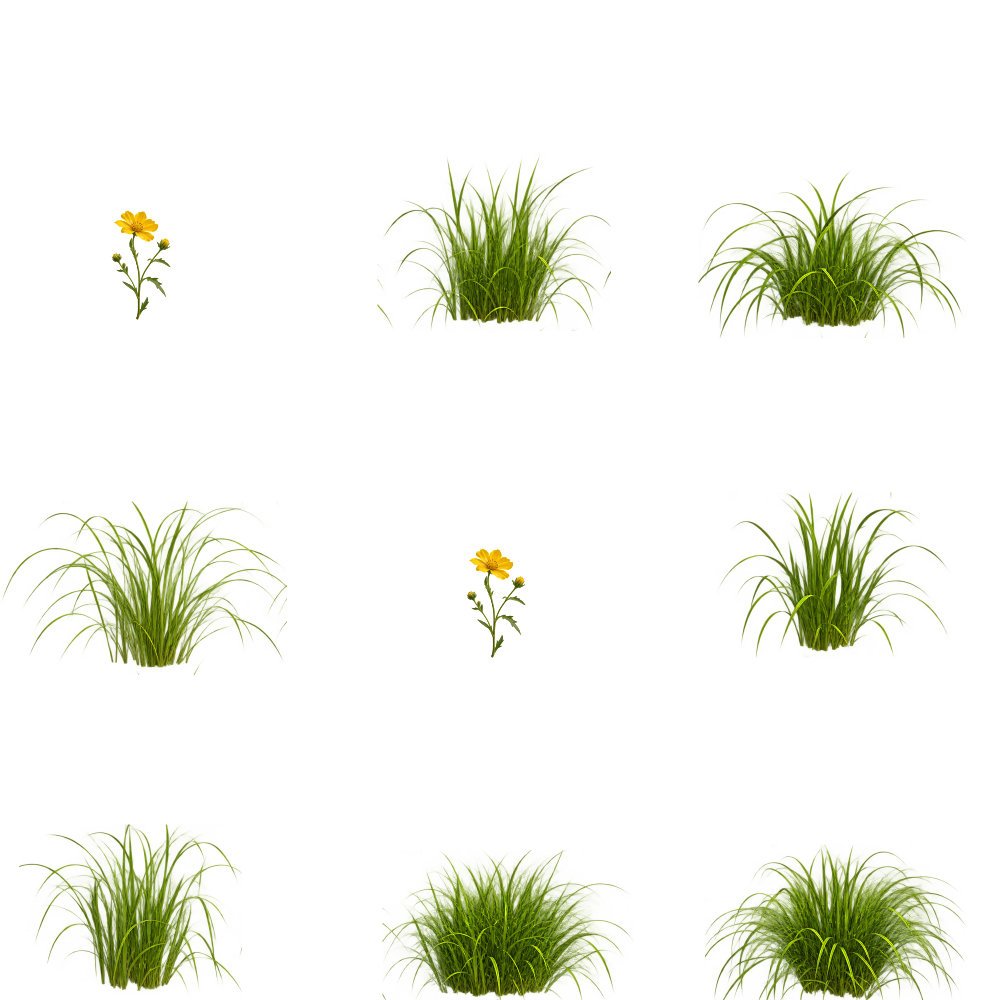
A configurable atlas lets each billboard select from multiple images, adding visual variation without creating a separate geometry path for every texture.
The result is a more flexible billboard grass renderer: the same rectangle-based geometry can show different images, and the developer can decide whether its final color comes from the texture or from the shader.
At this point, Three.js Grassworks had two ways to represent grass. Blade-based grass kept the individual geometry and movement that gave it its distinctive look. Billboard grass offered a different option for dense fields, using textured rectangles, atlas variation, and the same underlying wind behaviour adapted to the new geometry.
Neither is the right answer for every scene. The decision depends on the look you need, how close the player gets to the grass, how dense the field should be, and the performance budget. The key was letting developers choose the representation that fit their project rather than forcing every environment to use the same approach.
This is one of the choices built into Three.js Grassworks, my Three.js and WebGPU grass system.
Explore Three.js Grassworks and try the live demo.
Adding billboard grass gave me another way to render the field, but I still needed a way to shape the field itself. In a real environment, grass does not have the same height everywhere. Some patches need tall grass, some need shorter grass, and some areas contain holes or should remain clear.
I wanted developers to control where grass grows and how its height changes from one area to another, with enough flexibility to create the look their environment required. Random placement on its own was not enough for that kind of art direction.
That became the next step: grass maps. In Part 7, I'll explain how I approached giving developers more direct control over grass placement and height across a terrain.
Previously in this series: Three.js Grass on Terrain: How I Used a Height Map
Next in this series: Three.js Grass Maps: Control Grass Coverage and Height
 by the team at Tech Redux by the team at Tech Redux